
- One command turns a YouTube video into reviewed flashcards.
- Cards are generated from key ideas, not raw transcript lines.
- You review and approve every card before it is saved.
- The workflow combines three open tools: yapsnap, llm-wiki-manager, and the ouou MCP server.
Just here to use ouou?
This workflow needs software outside the ouou app. You do not need it to add or review cards. Use it if you want to point AI at a YouTube video and turn the main ideas into cards for your deck.
It uses Claude Code, a separate AI tool you run on your computer. If that sounds like something for later, skip ahead to the skill source, or close the tab. ouou works fine without any of this.
What the skill does
yt-ingest is a Claude Code skill. Give it a YouTube URL and it runs a
four-stage pipeline:
- Fetch — downloads the video’s audio and extracts a transcript using yapsnap.
- Ingest — saves the transcript to a personal wiki and updates entity and concept pages using llm-wiki-manager.
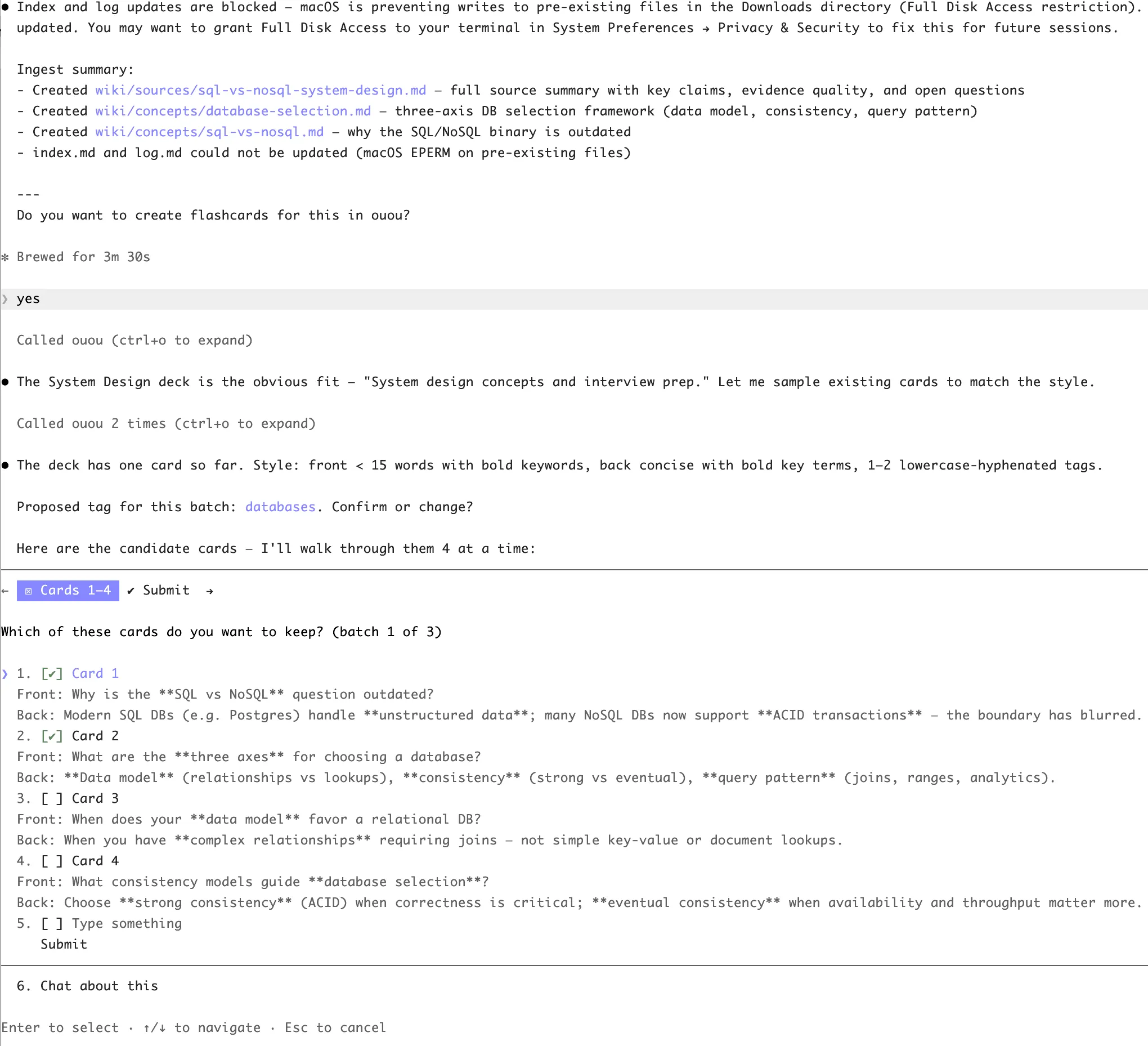
- Generate — reads your existing ouou deck to understand its style and domain, then proposes 5–15 flashcard candidates from the video content.
- Review and save — presents cards for your approval in batches; only approved cards are written to ouou via the ouou MCP server.
The transcript is never stored in ouou. The wiki ingestion is a separate, optional knowledge base. Your ouou deck only ever receives the cards you approve.
Prerequisites
- Claude Code installed and running.
uvxavailable on your PATH (pip install uvif not).- A configured ouou MCP server — see the ouou MCP setup guide.
- The
llm-wiki-managerskill installed in your Claude Code skills directory (the yt-ingest skill calls it internally).
Running the skill
Install the skill by adding the source at the end of this article to
.claude/skills/yt-ingest/SKILL.md in any project, or to your home directory
for global access. Then run this in a Claude Code session:
/yt-ingest https://www.youtube.com/watch?v=<video-id>The skill walks you through each step interactively.
How It Works
yapsnap — transcript extraction
yapsnap is a CLI tool that downloads a
YouTube video and extracts a transcript. The skill calls it through uvx, so
you only need uv installed:
uvx yapsnap '<url>'The output is the raw transcript text. yapsnap handles caption extraction and audio-to-text for videos without captions.
llm-wiki-manager — knowledge base ingestion
llm-wiki-manager is a Claude Code skill that maintains a personal wiki: entity pages, concept links, a source index, and an ingestion log. yt-ingest calls it in Ingest mode after saving the transcript, so each video can become part of a broader knowledge base, not just a one-off batch of cards.
This step is what makes the skill more than a transcript-to-flashcard converter. The wiki becomes a growing record of what you have learned from. The flashcards become the retrieval layer on top.
ouou MCP — deck integration
The ouou MCP server exposes three tools that Claude can call directly:
| Tool | What it does |
|---|---|
list_decks | Returns your decks with names, IDs, and tag vocabulary |
search_cards | Reads existing cards to understand deck style and domain |
create_cards | Writes approved cards to the chosen deck |
By reading existing cards before generating new ones, Claude can match your deck’s tone, card granularity, and vocabulary instead of producing generic cards. Nobody needs another deck full of technically correct mush.
Choose a Good Video
The skill works best when:
- The video has clear captions (human-written or high-quality auto-generated).
- The content is factual or conceptual rather than purely narrative.
- The video is under 90 minutes (longer content is processed in chunks, which can occasionally affect cross-chunk coherence).
Better explanations make better cards. A dense, well-structured lecture usually produces denser, better-structured cards.
Review and Refine Cards
The skill presents cards in batches of four. Select the cards you want to keep; unchecked cards are dropped. After all batches, you can ask for rewording before anything is saved.
Before accepting cards, consider:
- Edit any card whose phrasing feels awkward.
- Drop cards that are too obvious or too obscure for your current level.
- Merge near-duplicates — the AI may propose two cards for the same idea phrased differently.
yt-ingest is a skill, not a built-in ouou feature. It runs inside Claude Code and requires a Claude API session. Approved cards land in your normal ouou deck and sync like manually added cards. The skill source is open, so you can adapt any step.
Appendix: Skill Source
Add the text below to .claude/skills/yt-ingest/SKILL.md to install the skill.
The frontmatter between the --- lines tells Claude Code the skill’s name,
trigger conditions, and allowed tools.
---
name: yt-ingest
description: Ingest a YouTube video into the wiki and optionally generate ouou
flashcards. Use when given a YouTube URL, "add this video to my wiki",
"ingest this talk", "make flashcards from this YouTube video", or "watch and
file this".
allowed-tools: Bash, Read, Write, Edit, mcp__claude_ai_ouou__list_decks,
mcp__claude_ai_ouou__search_cards, mcp__claude_ai_ouou__create_cards
---
# YouTube Video Ingest
Fetch an English transcript, ingest it into the wiki, then optionally generate
ouou flashcards.
## Step 1: Resolve the YouTube URL
If the user provided a URL as an argument, use it. Otherwise ask for it.
## Step 2: Fetch the Transcript
Run:
```
uvx yapsnap '<url>'
```
Capture the stdout. If yapsnap exits non-zero, report the error and stop.
Derive a slug from the video title or URL (lowercase, hyphens, no spaces).
Use the YouTube video ID as a fallback slug. Name the raw file `yt-<slug>.md`.
## Step 3: Save to raw/
Read memory to get the wiki root path. Save the full transcript output to
`<wiki-root>/raw/yt-<slug>.md` with this header:
```markdown
# <video title or slug>
Source: <url>
Fetched: <today's date YYYY-MM-DD>
---
<transcript text>
```
## Step 4: Ingest into the Wiki
Invoke the **`llm-wiki-manager` skill** in **Ingest mode**, passing the raw
file saved in Step 3 as the source. The skill handles all bookkeeping: source
summary, entity/concept pages, cross-references, index update, and log entry.
## Step 5: Offer Flashcards
Ask: "Do you want to create flashcards for this in ouou?"
If no, stop here.
## Step 6: Choose a Deck
Call `mcp__claude_ai_ouou__list_decks` and present the deck names to the user.
Ask which deck to add cards to.
## Step 7: Understand the Deck's Specialisation
Call `mcp__claude_ai_ouou__search_cards` with a broad query (e.g., `*` or the
deck name) filtered to the chosen deck. Read 10–20 existing cards to
understand:
- What domain or topic the deck covers
- The card style (question/answer, cloze, definition, etc.)
- Typical card granularity (single fact vs. broader concept)
- Vocabulary and tone used
## Step 8: Agree on a Tag
Before generating cards, propose a single tag for this batch based on the
video topic (e.g. `distributed-systems`, `caching`, `networking`). Check the
deck description and any tags seen on existing cards in Step 7 for
consistency. Ask the user to confirm or change the tag. Use that tag on every
card created in this session.
## Step 9: Generate Cards
Based on the transcript content and the deck's specialisation, generate a
candidate list of flashcards that:
- Match the deck's domain focus — skip video content that is off-topic for
this deck
- Follow the existing card style and granularity
- Cover the most durable, testable facts and concepts from the video
- Avoid redundancy with cards found in Step 7
Target 5–15 cards unless the video is unusually dense or sparse.
## Step 9b: Review Cards
Present all candidate cards for review using the structured multi-select
question tool (AskUserQuestion). The tool is capped at **4 options per
question**, so split cards into batches of 4 and fire one question per batch.
Label each option "Card N" with the front and back in the description. Ask the
user to tick the ones they want to keep — unchecked = dropped.
After all batches, collect the kept cards. If the user flags any for
improvement (via a follow-up message), apply the edits and confirm the revised
card inline before adding it to the approved list.
## Step 10: Create Cards
Call `mcp__claude_ai_ouou__create_cards` with the approved cards. Confirm how
many were created.